Opposable for Mac
Let your AI use your iPhone. Opposable connects the phone to your Mac, so Claude Code, Codex or Claude Desktop can see the screen and tap, swipe and type for you. Nothing to install on the phone.
Download · beta 0.1.0-beta
19 MB disk image. Open it and drag Opposable into Applications.
SHA-256 7c31a3902d6960d46b0bd7d57f8b127bf04fed1b709754265153c9340b234990
What you need
- A Mac with Apple silicon (M1 or later), on macOS 14 Sonoma or later.
- An iPhone on iOS 18 or later.
- A USB-C cable that carries data, or the iPhone and Mac on the same Wi‑Fi to use AirPlay instead.
- Claude Code, Codex or Claude Desktop on the Mac.
First time you open it
macOS asks you to confirm
This beta isn't notarized by Apple yet, so macOS can't verify it and stops the first launch. You only do this once:
- Double-click Opposable in Applications. When macOS says it can't verify it, click Done.
- Open System Settings › Privacy & Security, scroll to “Opposable was blocked” and click Open Anyway. Confirm with your password.
On macOS 14 Sonoma: right-click Opposable in Applications › Open › Open.
Setup
Five minutes, step by step
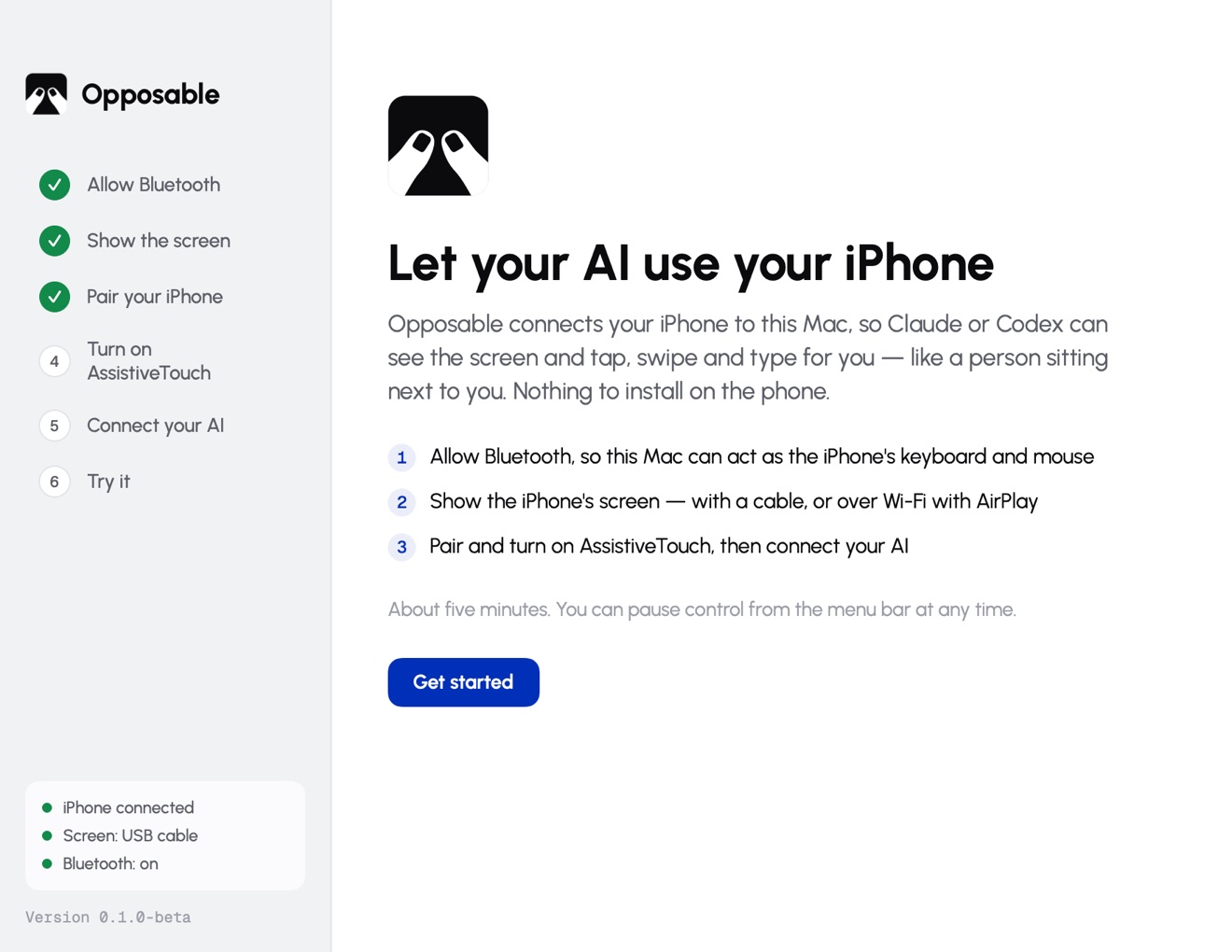
Opposable walks you through it, and each step turns green when it's done.
- Allow Bluetooth. Opposable shows up on your iPhone as a Bluetooth keyboard and mouse. That's how your AI taps and types.
- Show the screen. Plug the iPhone in with a cable, unlock it and tap Trust. Or go without a cable: turn on AirPlay Receiver on the Mac and start Screen Mirroring from the iPhone's Control Center.
- Pair your iPhone. On the iPhone, open Settings › Bluetooth and tap Opposable under Other Devices.
- Turn on AssistiveTouch. Settings › Accessibility › Touch › AssistiveTouch. iPhones only show a mouse pointer with it on.
- Connect your AI. One click adds Opposable to Claude Code or Claude Desktop; for Codex, copy the snippet it shows. Then take a first look at the phone with Try it.
Good to know
- Opposable lives in the menu bar. Pause control stops all taps and typing until you turn it back on; your AI can still look.
- Everything stays on your Mac: the phone's screen goes from the cable or AirPlay straight to your AI app, not through our servers.
- Keep the iPhone unlocked while your AI works. Settings › Display & Brightness › Auto-Lock › Never helps for longer tasks.